

Welcome to this guide that explains how to set up a minimal federation, complete with guide on how to integrate an application that does not know oidfed/oidc.
In this guide all solutions are built on top of ubuntu 24.04 LTS server with packages and solutions from the official channels wherever possible; with the default system management tools such as systemd and the traditional system paths such as /etc and /opt. This should result in a setup that is familiar for many NREN operators and is easy to integrate with monitoring tools. This guide does not use docker, however, a dockerized solution should be relatively easy to derive from it; moreover several all elements (gorp/offa, lighthouse, ssp) are known to have docker version.
Requirements
In this guide we are going to use three VMs that represent the three different sets of responsibilities:
- the Home Organization/OP (simplesamlphp), the role used to be 'IdP' in the SAML parlance.
- in this example the domain name of this VM is: oidfed-op-demo.incubator.geant.org
- A Trust Anchor
- oidfed-op-demo.incubator.geant.org
- a Relying Party component together with the web application
- oidfed-appdemo.incubator.geant.org
Architecture
the image below explains the main components in the three VMs.
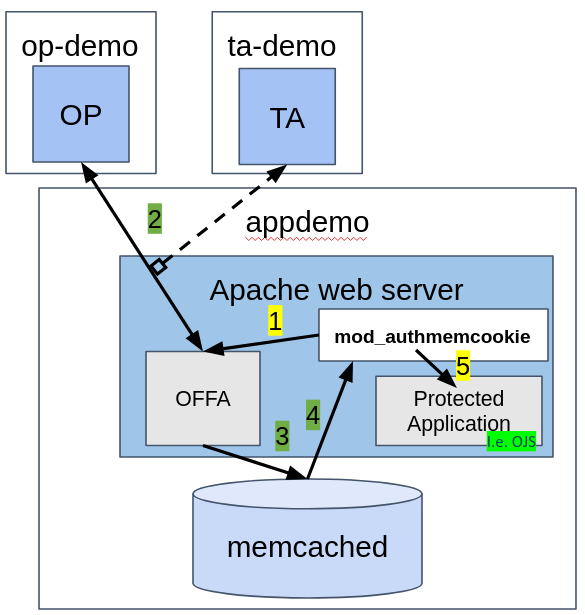
This picture shows what happens on the VM appdemo
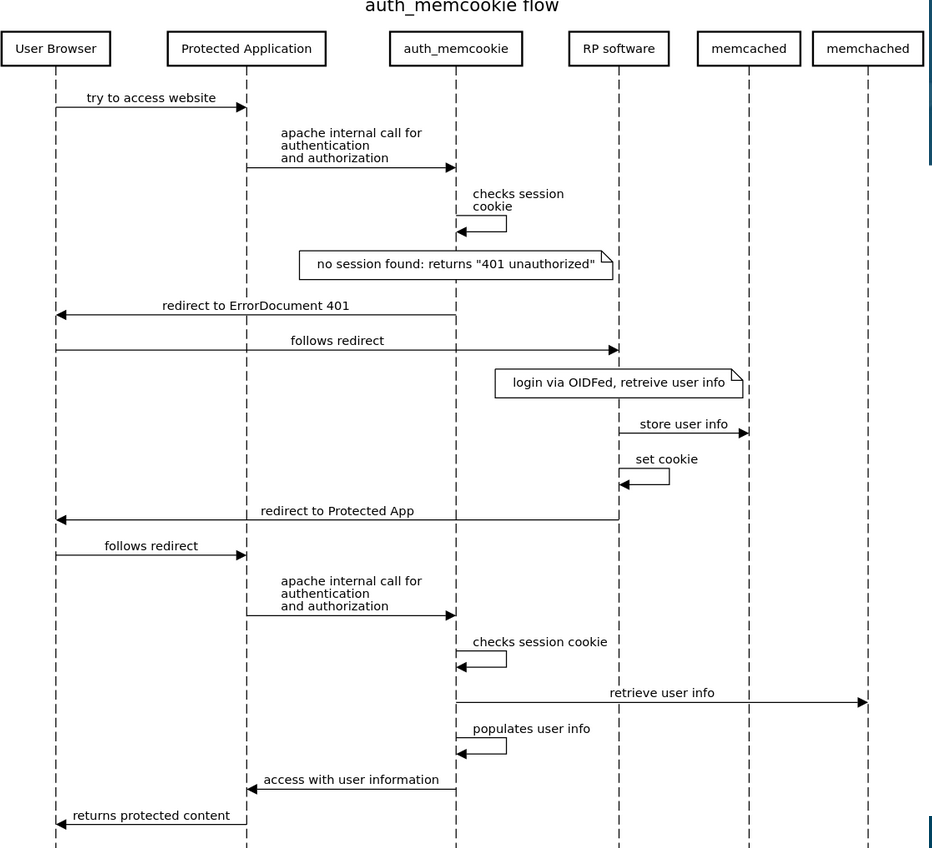
Instructions
appdemo
1) basic packages
First, get the some packages from the repositories
apt install apache2
apt install memcached libmemcached-dev libmemcached-tool libevent-dev autoconf unzip
2) SSL with letsencrypt
In this example we are enabling SSL with letsencrypt, obviously this step can be substituted with another certificate source
sudo snap install --classic certbot
sudo ln -s /snap/bin/certbot /usr/bin/certbot
sudo certbot --apache
3) enable apache proxy modules for integrating with offa
gorp-offa runs its own web endpoint that we will proxy with apache
a2enmod proxy
a2enmod proxy_http
4) get and compile auth_memcookie
In the case of authmemcookie, we have to get the source code and compile the apache module
wget https://github.com/ZenProjects/Apache-Authmemcookie-Module/tarball/master
./configure --with-apxs=/usr/bin/apxs --with-libmemcached=/usr/
Then, we have to register it as a module in apache by creating a file the following way
cat << EOF > /etc/apache2/mods-available/auth_memcookie.load
# Depends: authn_core
LoadModule mod_auth_memcookie_module /usr/lib/apache2/modules/mod_auth_memcookie.so
EOF
We have to enable the module
a2enmod auth_memcookie
If all of the above runs without errors, we have achieved an apache instance with mod_auth_memcookie enabled.
5) install gorp/offa
At the time of writing, we can get offa by downloading the GO source and compiling.
We need a go compiler
sudo snap install --classic go
Get the offa source code and compile
cd /opt
wget https://github.com/go-oidfed/offa/archive/refs/heads/main.zip
unzip main.zip
mv offa-main/ offa
cd offa
go mod download
mkdir bin
go build -o /opt/offa/bin/offa github.com/go-oidfed/offa
This way we end up with an offa binary under /opt/offa/bin/offa
6) Prepare log and key directories
In this step we create the certificate and logging directories for offa
mkdir /var/log/offa
mkdir -p /etc/offa/key
7) Write the configuration
We will create the configuration file under the /etc/offa directory:
cat << EOF > /etc/offa/config.yaml
server:
  ip_listen: 127.0.0.1
  port: 15661
logging:
  access:
    dir: /var/log/offa
    stderr: false
  internal:
    dir: /var/log/offa
    level: debug
    stderr: false
    smart:
      enabled: true
sessions:
  ttl: 3600
  cookie_domain: oidfed-appdemo.incubator.geant.org
  cookie_name: offamemcache
  memcached_addr: localhost:11211
  memcached_claims:
        UserName:
            - preferred_username
            - sub
        Groups: groups
        Email: email
        Name: name
        GivenName: given_name
        Provider: iss
        Subject: sub
signing:
  key_storage: /etc/offa/keys
federation:
  entity_id: https://oidfed-appdemo.incubator.geant.org
  trust_anchors:
    - entity_id: https://oidfed-ta-demo.incubator.geant.org
  authority_hints:
    - https://oidfed-ta-demo.incubator.geant.org
8) Startup of OFFA
since we want to run this service independent from our terminal, so that it keep running after we have signed out, we cannot just start it directly.
We have a few options.
We can start in screen
screen -S offa /opt/offa/bin/offa
Other options:
- put the process in the background and disown it
- create a systemd service out of the system (see below)
9) memcached
With the offa configuration above, we don't need to configure memcahced, as we rely on the default port of 11211. Moreover, apt will install memcached as a service and start it. Therefore, there is nothing to do, it should work as is.
But it is good to know that the configuration of memcached lives under /etc/memcached.conf
Also, memcached is managed by systemd, so you can manipulate it with systemctl
10) apache configuration
Here is a working configuration for apache. There are several things to note:
- the endoints of offa are proxied and reverse proxied, so that these paths are served by offa, while the rest is by the apache web server.
- by default, the site is publicly available, so that the landing pages work for unauthenticated users. The path /protected is protected by offa.
- the "unauthorized" error (401) page is set to be the login path of offa. This is how the authentication is initiated. By setting the ?next parameter, we can prescribe where the application should return after successful login. Unfortunately, we cannot dynamic valuse here, luckily, it is not needed usually.
Configure apache the following way in the virtualhost file: /etc/apache2/sites-enabled/000-default-le-ssl.conf
<IfModule mod_ssl.c>
<VirtualHost *:443>
# The ServerName directive sets the request scheme, hostname and port that
# the server uses to identify itself. This is used when creating
# redirection URLs. In the context of virtual hosts, the ServerName
# specifies what hostname must appear in the request's Host: header to
# match this virtual host. For the default virtual host (this file) this
# value is not decisive as it is used as a last resort host regardless.
# However, you must set it for any further virtual host explicitly.
#ServerName www.example.comServerAdmin webmaster@localhost
DocumentRoot /var/www/html# Available loglevels: trace8, ..., trace1, debug, info, notice, warn,
# error, crit, alert, emerg.
# It is also possible to configure the loglevel for particular
# modules, e.g.
#LogLevel info ssl:warnErrorLog ${APACHE_LOG_DIR}/error.log
CustomLog ${APACHE_LOG_DIR}/access.log combined# For most configuration files from conf-available/, which are
# enabled or disabled at a global level, it is possible to
# include a line for only one particular virtual host. For example the
# following line enables the CGI configuration for this host only
# after it has been globally disabled with "a2disconf".
#Include conf-available/serve-cgi-bin.conf<Location />
Auth_memCookie_CookieName offamemcache
Auth_memCookie_Memcached_Configuration --SERVER=127.0.0.1:11211# to redirect unauthorized user to the login page
ErrorDocument 401 "/login?next=/protected"# to specify if the module are autoritative in this directory
Auth_memCookie_Authoritative on
# must be set without that the refuse authentification
AuthType Cookie
# must be set (apache mandatory) but not used by the module
AuthName "OIDFED-AuthMemCookie"
Require all granted
</Location>#This is where the OIDFed stack is
#we need to pass through the user, otherwise there is a redirect loop
<Location "/login">
Require all granted
</Location>#This is the protected location of the application
<Location "/protected">
require valid-user
</Location>ProxyPass /.well-known http://localhost:15661/.well-known
ProxyPassReverse /.well-known http://localhost:15661/.well-knownProxyPass /login http://localhost:15661/login
ProxyPassReverse /login http://localhost:15661/loginProxyPass /redirect http://localhost:15661/redirect
ProxyPassReverse /redirect http://localhost:15661/redirectProxyPass /static http://localhost:15661/static
ProxyPassReverse /static http://localhost:15661/staticServerName oidfed-appdemo.incubator.geant.org
SSLCertificateFile /etc/letsencrypt/live/oidfed-appdemo.incubator.geant.org/fullchain.pem
SSLCertificateKeyFile /etc/letsencrypt/live/oidfed-appdemo.incubator.geant.org/privkey.pem
Include /etc/letsencrypt/options-ssl-apache.conf
</VirtualHost>
</IfModule>
X) Other considerations
Key materials
At first startup, offa will create all the signing keys it needs both for OpenID federation (such as metadata) as well as OIDC. You can prevent that by manually creating the keys with commands like this.
cd /etc/offa/keys
openssl ecparam -genkey -name secp521r1 -noout -out federation_ES512.pem
This is really only needed if you want to have different parameters than the default.
log levels
in the config file above we enabled debug, which is a good way to see what is happening and get a sense of the system in the beginning. After a while you probably want to switch to info instead of debug
Running as systemd service
Monitoring
ta-demo - lighthouse trust anchor
1) set up apache with letsencrypt certificates the same way as seen in offa, steps 1-3. (memcached packeges not needed)
2) download and compile lighthouse
cp /opt
wget https://github.com/go-oidfed/lighthouse/archive/refs/heads/main.zip
unzip main.zip
mv lighthouse-main/ lighthousecd lighthouse
go mod download
mkdir bin
go build -o bin/lighthouse github.com/go-oidfed/lighthouse/cmd/lighthouse
go build -o bin/lhcli github.com/go-oidfed/lighthouse/cmd/lhcli
3) create working folders
mkdir -p /opt/lighthouse/data
mkdir -p /var/log/lighthouse
4) configure lighthouse
cat << EOF > /etc/lighthouse/config.yaml
server:
port: 7672
logging:
access:
dir: /var/log/lighthouse
stderr: false
internal:
dir: /var/log/lighthouse
stderr: false
level: info
smart:
enabled: true
storage:
backend: json
data_dir: /opt/lighthouse/data
signing:
key_dir: /etc/lighthouse/keys
endpoints:
fetch:
path: /fetch
statement_lifetime: 3600
list:
path: /list
federation_data:
entity_id: https://oidfed-appdemo.incubator.geant.org/trust-anchor
federation_entity_metadata:
display_name: OIDFED-APPDEMO Trust Anchor
description: "A trust anchor in the GN5-2 TI Incubator"
EOF
5) enable the proxying in the virtualhost file
Add the following lines in the virtualhost file /etc/apache2/sites-enabled/000-default-le-ssl.conf anywhere within the virtualhost
ProxyPass /.well-known http://localhost:7672/.well-known
ProxyPassReverse /.well-known http://localhost:7672/.well-knownProxyPass /fetch http://localhost:7672/fetch
ProxyPassReverse /fetch http://localhost:7672/fetchProxyPass /list http://localhost:7672/list
ProxyPassReverse /list http://localhost:7672/list
6) startup
We need to start the process in a detached way (see note at offa in the previous section).
screen -S lighthouse /opt/lighthouse/bin/lighthouse
7) adding leafs with lhcli
TBA